After installing Joli Table of Contents, you will be redirected to the settings page.
From version 3, a Setup Wizard will automatically show up the first time.
It is highly recommended to follow the steps.
What is Joli Table of Contents
Color Palette
The color palette let you define custom colors to quickly style the Table of Contents to match your branding.
Each theme comes with a set of predefined colors. You will most likely want to override one or more of these colors. This is where the color palette comes into action.
Moreover, each color that is defined in the palette will become a reusable reusable dynamically across any other color setting. This means that if you were to change the Accent color (color 3) from Blue to Green fro example, the value will update dynamically for every other color setting that is set to “palette:color-3”.
The colors from the palette become available under the form of color “swatches”

The palette is meant to simplify your customization experience but if you need more control on your colors, you can OVERRIDE any color by setting a custom color in the “Styles” tab.
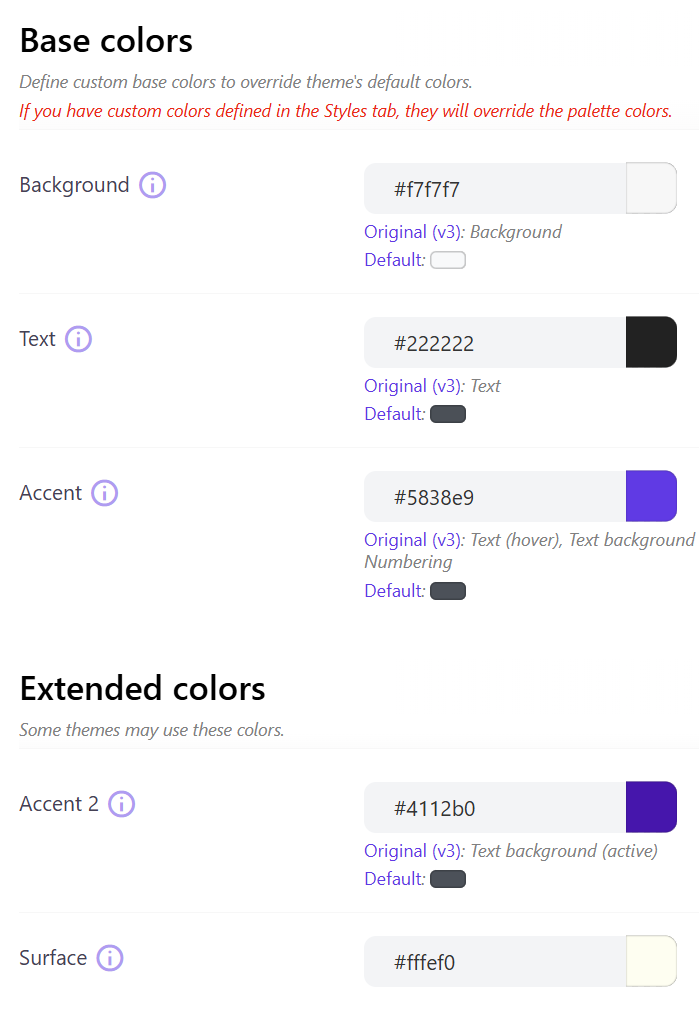
The palette is divided in 3 sections:
Base colors
- Background
- Text
- Accent (This is the most important color)
Setting one or all of the base colors will do 90% of the color styling for your table of contents
If you haven’t set the Accent color from the Setup Wizard, this is the first color you should set. The Accent color will automatically “spread” in the selected theme.
Extended colors
- Accent 2
- Surface
These colors might be used differently depending on the selected theme. You should adjust them only if you have specific needs.
Extra colors
- Color 6
- Color 7
- Color 8
- Color 9
These colors are rarely used by themes. However you can use these as additional color slots that you want to reuse across other color settings
To get started, the most important settings that you need to focus on are the following:
Headings overflow
GENERAL > TABLE OF CONTENTS > Headings overflow
This option defines whether or not the heading will wrap or will be truncated on a single line if the length of the heading exceeds the width of the actual table of contents.


Animate on fold
GENERAL > TABLE OF CONTENTS > Animate on fold
This option will add a short animation to the fold/unfold mechanism.
Headings full row clickable
GENERAL > TABLE OF CONTENTS > Headings full row clickable
This option allows a heading to be clicked on its full width OR on its text only.
Activate this option for more convenience or if you have some background effects.

Table of contents title
GENERAL > TABLE OF CONTENTS HEADER > Table of contents title
Customize the Table of contents title to your liking or your language.
Table of contents toggle
GENERAL > TABLE OF CONTENTS TOGGLE > Toggle type
Choose from different toggle styles : Animated icon / Icon / Text
Depending on the option you choose, you can select either the text or the icon that you want.


Numeration
GENERAL > NUMERATION > Numeration type
The numeration option will prefix automatically each heading with a number.
You can choose between decimal numbers, roman numbers, hexadecimal or even binary (why not!).
Also, the Numeration display option lets you choose to display the current level only or the parents level also.


Headings processing depth
HEADINGS > HEADINGS PROCESSING > Headings depth
By default, all the headings are picked up from H2 to H6.
If you wish to have the Table of contents pick up on H2 & H3 headings only, you need to deselect H4, H5, & H6.

Choose the default theme
THEME > BASE THEME > Theme
Choose a base theme for your website from the available items in the list.
You can override its presets in the STYLE tab.
Further customization
STYLES > *
In order to customize more in details the Table of contents, you can override any of the current theme’s preset from the available options.
The Styles are categorized according to the structure of the Table of contents. Hover on the “Visualise” info icon to see what part of the TOC the section is styling.
Changing any setting will result in overriding the selected theme’s defaults, if applicable.
Switching from theme to theme with exisiting styling options could result in unexpected visual effects.