The Timeline TOC is a new clever way to outline your content on a single line. Each marker represents either a H2 or a H3 heading.
The maximum heading depth for the timeline is H3.
Timeline TOC Concept
- H2 Markers are bigger
- H3 Markers are smaller (and optional)
- The spacing between markers is proportionate to their position within the article
- The timeline can also be used as a vertical progress bar
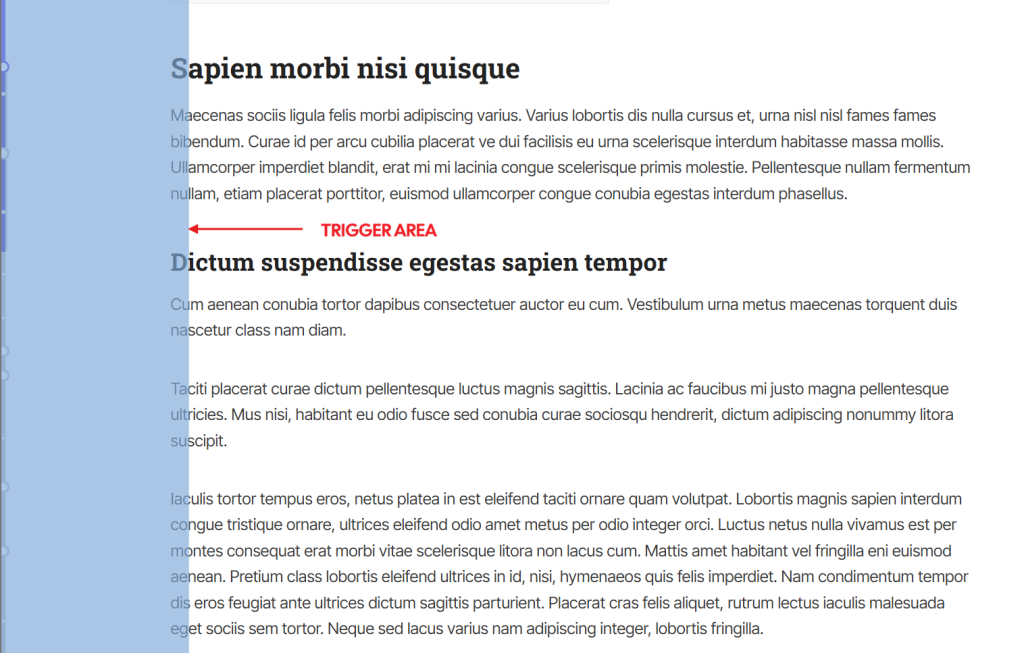
- A width-adjustable “invisible” area will trigger the expansion of the timeline on hover
The timeline has 2 states:
Collapsed: The timeline is visible but does not show any labels, only the markers. The markers are smaller.
Expanded: The timeline shows the headings as labels next to the markers, and the markers enlarge and include their respective number from the heading numbering.
An adjustable animation happens during the transition between the 2 states.
How to activate the Timeline TOC
Under Timeline TOC > Timeline table of contents, switch on the Activate timeline table of contents option.
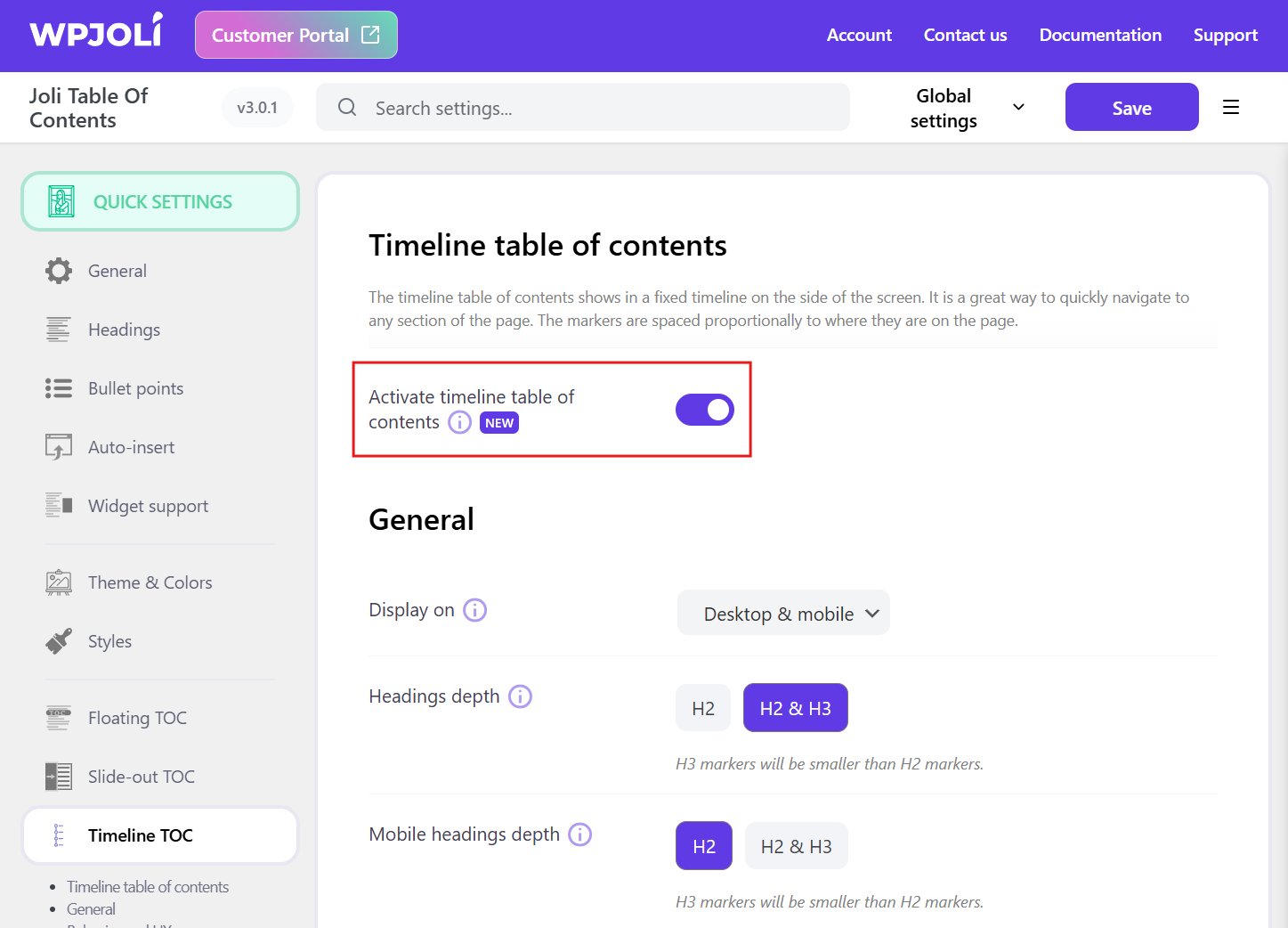
The timeline will be activated with the default values.
How to adjust the trigger area
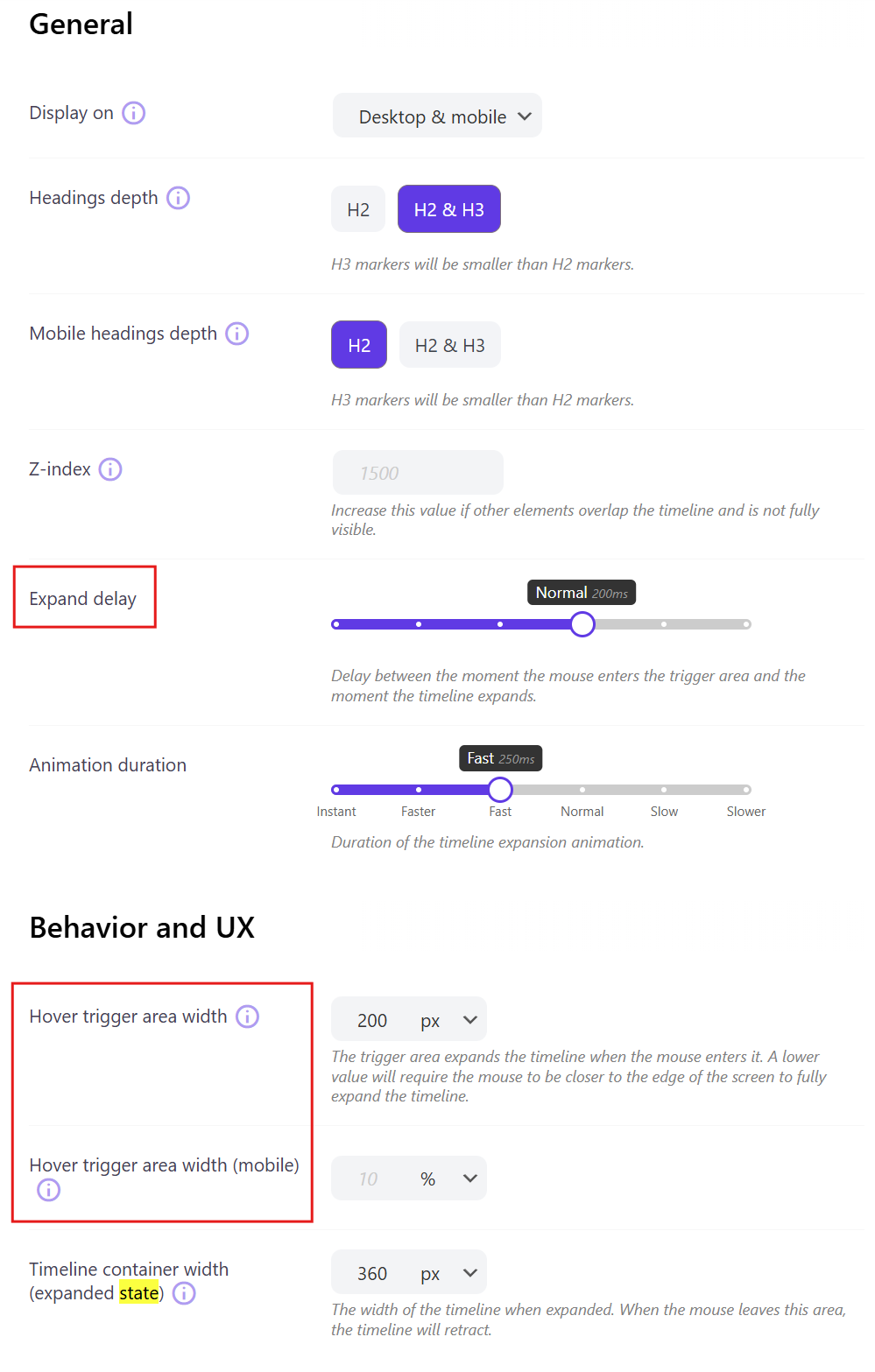
The trigger area will trigger the expansion of the timeline when it is in collapsed state. To prevent unwanted expansions of the timeline, you can adjust :
- The width of the area
- The delay (so that if you mouse hovers quickly it does not expanded it)
- The animation duration (from instant to a longer animation)
Here is how to adjust those settings:
Expanded state area
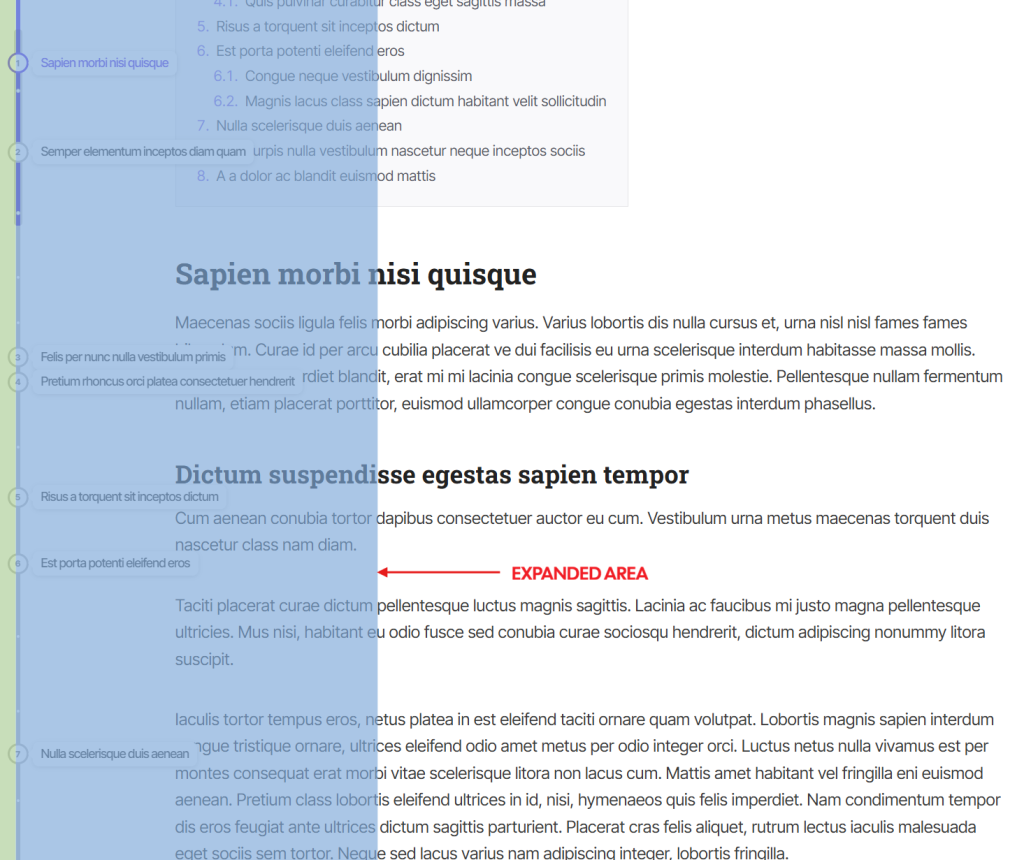
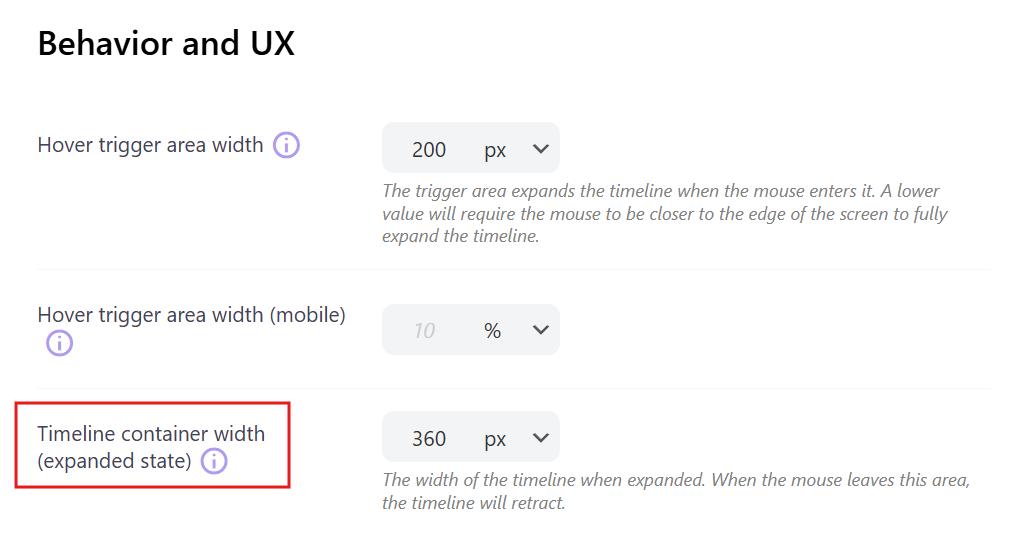
Once the timeline is expanded, its container area width can also be adjusted. This will determine how the timeline will automatically collapse.
While the mouse remains within the boundaries of the expanded area, the timeline will remain expanded. As soon as it leaves, the timeline will collapse.
On mobile, the expanded area takes up all the horizontal space and the background is blurred.
Adjust the value here:
How to keep the timeline static between collapsed/expanded states
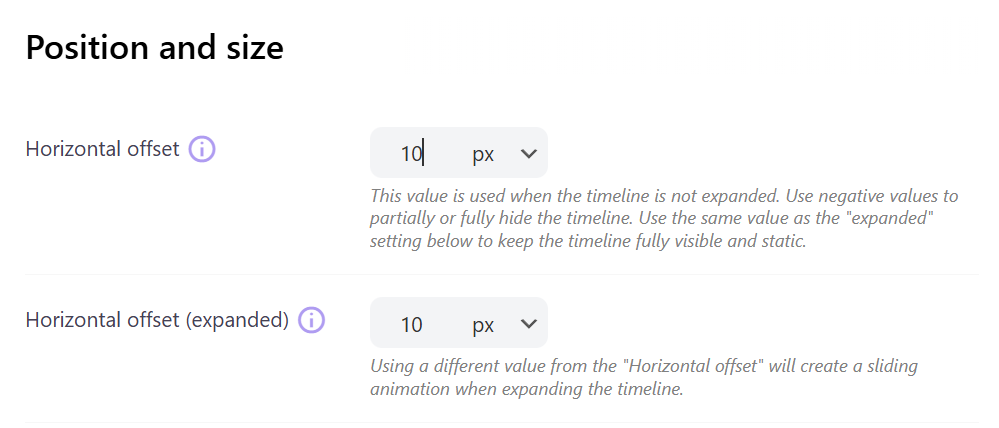
What determines if the timeline will expand with a slide-in effect from the edge is the difference between these 2 values:
- Horizontal offset
- Horizontal offset (expanded)
By default, these values are different. This creates a slide-in animation.
To prevent the animation, you need to set the exact same 2 values, like so: